


Outdated WordPress plugins can compromise your website’s security and performance. Learn how to identify and update them efficiently to ensure your site runs smoothly. This guide will provide you with practical steps for maintaining a secure and functional WordPress site. We’ll also cover how to update WordPress plugins safely, how to avoid plugin security risks, and why regular WordPress plugin updates are critical for long-term site health.
Key Takeaways
- Regularly updating WordPress plugins is critical for security, performance, and compatibility with the latest WordPress features. Neglecting updates can expose your site to plugin security risks tied to outdated plugins.
- Identifying outdated plugins can be done through the WP Admin dashboard or third-party tools, ensuring they are monitored effectively. Staying on top of WordPress plugin updates is a core part of secure site maintenance.
- Preparing for updates with backups, checking compatibility, and performing post-update verifications helps maintain website integrity and functionality. These steps are especially important before you update WordPress plugins on a live site.
Why Keeping WordPress Plugins Updated is Crucial
Maintaining your WordPress site requires diligent updates to the plugins you use. Frequent plugin upgrades are fundamental for fortifying your website against security threats, as vulnerabilities in outdated plugins can be targeted by hackers looking to infiltrate and exploit your site.
These regular updates don’t just shore up your website’s security. They also offer valuable bug fixes that help eliminate technical hiccups and improve overall performance, leading to a smoother operation of your website. These enhancements often include novel features within the theme updates that contribute significantly to refining user interactions and boosting engagement on your site.
It’s equally important from a compatibility standpoint because keeping plugins current ensures they work seamlessly with new WordPress versions. When a plugin is not updated, it may become incompatible with recent changes in WordPress’s core software, disrupting key functionalities of your website. Consistent attention to these regular upgrades plays a pivotal role in safeguarding uninterrupted functionality and peak performance of any WordPress-powered platform.
How to Identify Outdated WordPress Plugins
It is essential to keep track of WordPress plugins that are not up to date in order to preserve the security and functionality of your site. Typically, this can be done through the WP Admin dashboard or by utilizing tools from external providers.
By consistently monitoring your plugins for updates, you contribute significantly to safeguarding the security and operational efficiency of your website. Employing these practices allows you to manage your plugins effectively, ensuring they stay current.
Checking Plugin Status in WP Admin
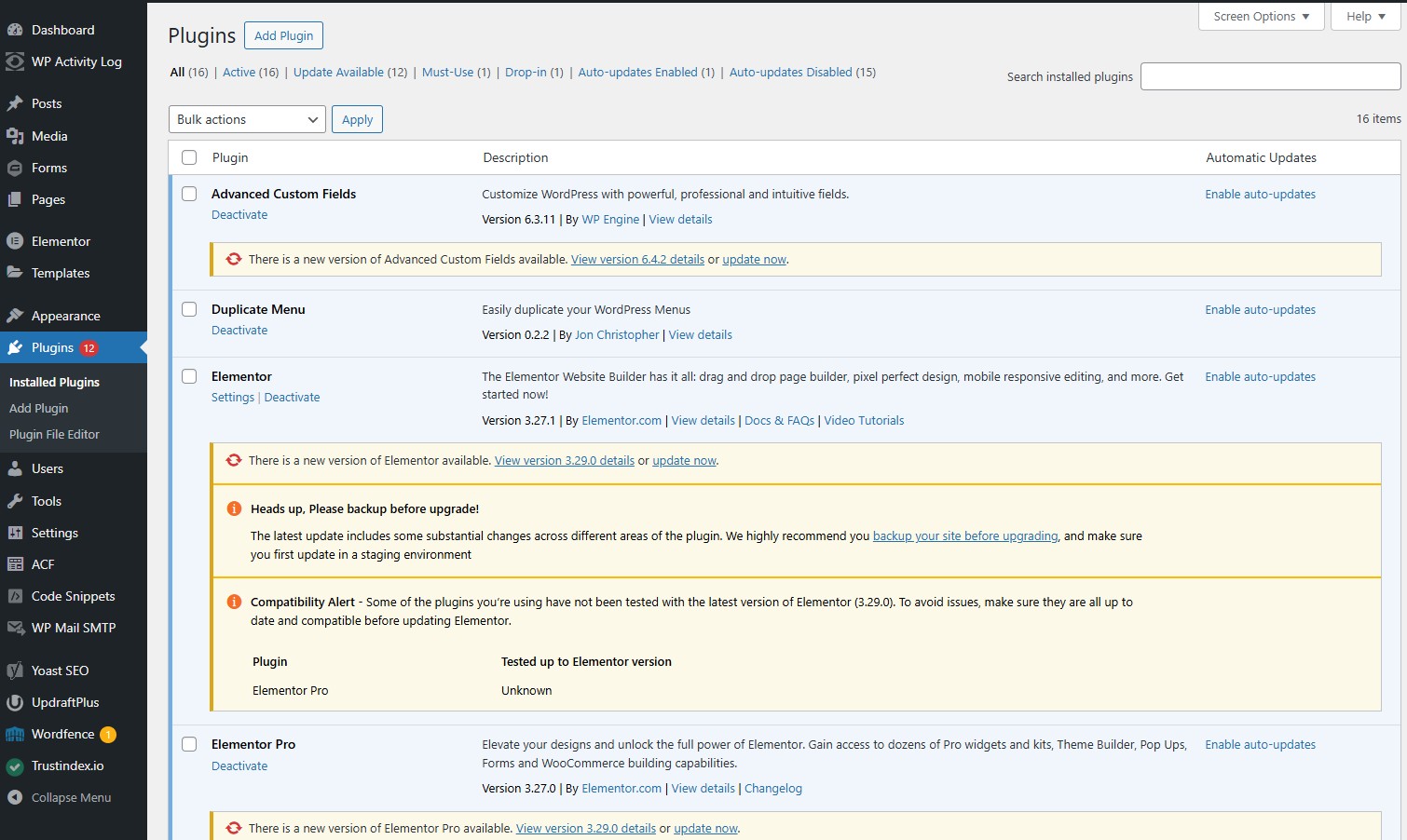
To verify the availability of updates for installed plugins within the WordPress admin dashboard, navigate to ‘Updates’ in the wp-admin main menu. This section delivers a summary of all installed plugins and indicates their update status. You can view all your plugins collectively by navigating to the Plugins tab or by visiting Appearance > Plugins, where you can manage them efficiently.
On this page, atop the interface lies a filter feature which when employed shows only those plugins with pending updates on your plugins page. These include options found within a dropdown menu as well. By utilizing this centralized location under the Plugins tab, it’s possible to perform bulk updates across multiple selected plugins simultaneously while keeping track of each plugin’s current version alongside any new versions that are available—ensuring that every component remains up to date effectively and efficiently.
Using Third-Party Tools
The WP Admin dashboard is a robust interface for managing your plugins, and while there are third-party tools available, it is generally best to update plugins manually. This approach gives you greater control over the update process and helps you avoid potential issues that automated updates might cause. By updating plugins manually, you can carefully review each update, ensure compatibility, and maintain the stability of your website.
Risks of Using Outdated WordPress Plugins
Operating a WordPress website with outdated plugins can be risky and cause serious problems. Using old versions of plugins makes your site an easy target for hackers who exploit known weaknesses in these outdated plugins. A plugin that hasn’t been updated by its developer is especially dangerous because it may harbor unresolved security flaws, making it particularly perilous for your website’s safety.
Using plugins that have not received updates for over a year might bring about compatibility issues, since they may not operate properly alongside recent upgrades to the WordPress core system. Such dated elements can lead to operational disturbances within vital components of your site, adversely impacting both how the site functions and the overall experience for visitors.
Lastly, outdated plugins are often culprits behind sluggish website performance. Developers frequently introduce enhancements aimed at boosting efficiency through updates. If left un-updated, these plugins become impediments resulting in extended loading periods which detract from user satisfaction. To ensure your website remains secure against threats while also delivering optimal functionality and speed, regular updates to all WordPress plugin installations are essential.
Preparing for Plugin Updates
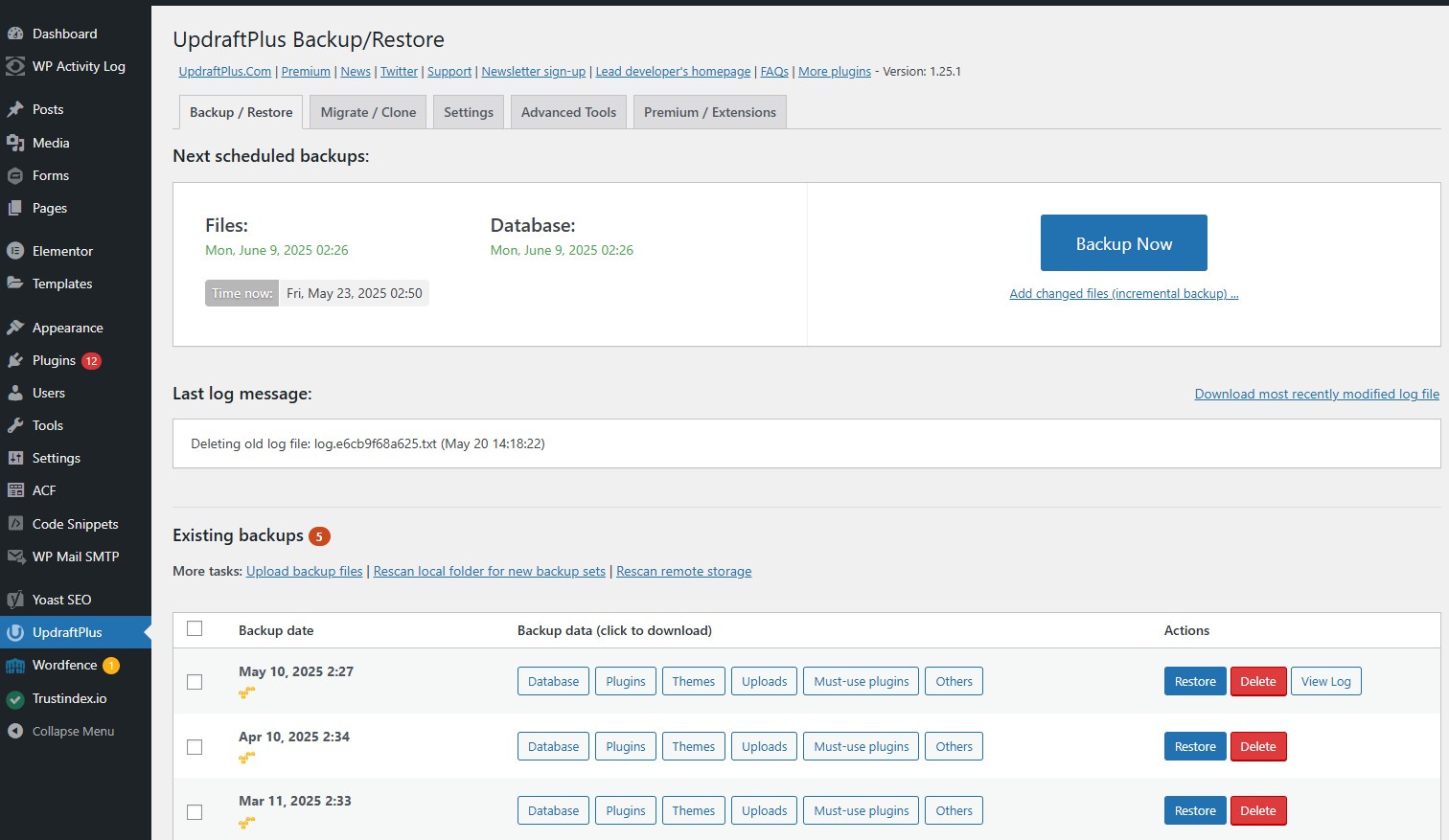
Before updating your WordPress plugins, prepare appropriately by creating a backup of your website. This ensures your data is safe and provides a restore point if something goes wrong during the update. Plugins like UpdraftPlus and similar backup tools can automate this process, making it easy to schedule regular backups and quickly restore your site if needed. Additionally, you should create a plan for how to handle any potential issues that may arise.
Also, check for compatibility issues with updates for plugins by using automated backups and visual regression testing.
Backup Your Website
Creating a backup of the site ensures safety before updating plugins. Backups protect your website’s database, files, plugins, themes, and uploads. If problems occur after updating a plugin, consider restoring your site from the backup. Alternatively, seek help from a professional or developer.
Backing up your site isn’t just a precaution; it’s a necessity. A reliable backup solution allows you to quickly restore your site to its previous state, minimizing downtime and potential data loss in the case of a failed update.
Check Compatibility
Verify compatibility with your current WordPress version and other plugins before updating any plugin. Ensure the plugin is compatible with the latest version of WordPress and that there are no conflicts with other installed plugins.
Ensuring compatibility helps prevent issues like functionality breaks, performance degradation, and potential site downtime, as well as ensuring specific functionality.
How to Update WordPress Plugins Manually
Manually updating WordPress plugins gives you control over when and how updates are applied. You can update plugins through the WordPress dashboard, FTP client, and WP-CLI.
Before updating a plugin, deactivate it and review the changelog provided by the developers.
Updating via WP Admin Dashboard
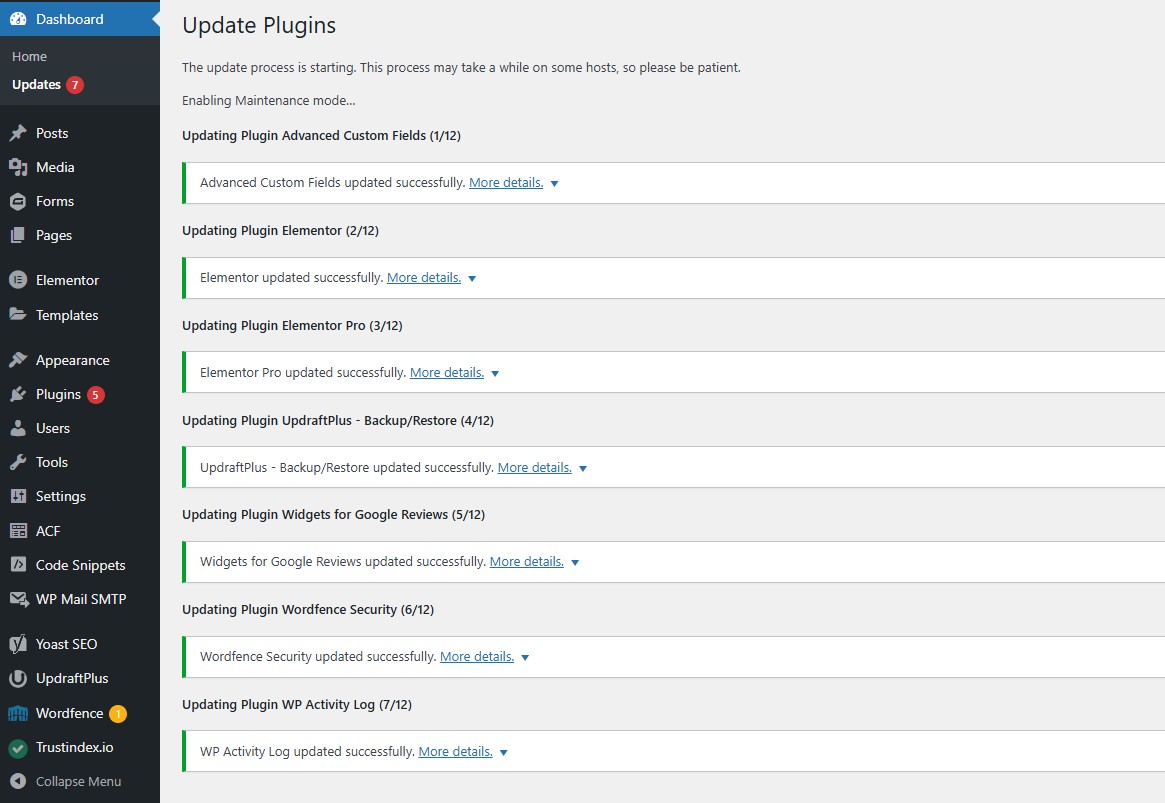
Navigate to the Plugins tab within your WordPress Dashboard to inspect whether any updates are available for installed plugins. This user-friendly approach provides a means of updating WordPress plugins right from the dashboard itself. You will be presented with an inventory of all installed plugins on the Plugins page, along with notifications of any accessible updates. Here you have the option to either update each plugin individually or employ the bulk update functionality in order to upgrade several plugins simultaneously.
The procedure through WP Admin is both simple and effective. Once you’ve chosen which plugins require updating, simply click on “Update” and watch as they automatically refresh themselves up to their latest versions. This pathway suits those who favor a graphical interface that allows quick and straightforward access for implementing updates.
Updating via FTP or SFTP
To perform an update of WordPress plugins using SFTP or FTP, proceed with the following instructions:
- Prepare by having your FTP client, such as FileZilla, open and ensure you have access to your FTP login details.
- Navigate to the directory where your plugins are installed on your website at Yourwebsite.com/wp-content/plugins/ . 3. Transfer the unzipped new plugin folder into the directory located at wp-content/plugins/.
On your web server.
- Prior to uploading a fresh version, rename the existing plugin’s folder so that you can keep a copy of its earlier files.
By adhering to these guidelines, updating WordPress plugins will be accomplished successfully.
Opting for updates via FTP provides greater management over file transfers. This alternative proves advantageous especially when challenges arise within WP Admin or there’s necessity in replacing certain files manually. By altering the name of former WordPress plugin directories before introducing newer iterations, ensures that backups remain intact for potentially necessary rollbacks to previous versions in case any issue arises after installing new plugins.
Updating via WP-CLI
For those adept in technical skills, the WP-CLI (WordPress Command Line Interface) provides a robust mechanism for controlling plugin updates. You can update an individual plugin by executing ‘wp plugin update plugin-slug’. Alternatively, to upgrade all plugins that are out of date simultaneously, run ‘wp plugin update – all’. Post-update, it’s prudent to remove the former plugin directory to eliminate any residual files. Rest assured that settings will be preserved within the database.
WP-CLI delivers speed and efficiency for WordPress users who are familiar with command line interfaces. This approach facilitates updating plugins outside of the WordPress dashboard—a convenient feature when dealing with mass updates or administering several WordPress sites concurrently.
Automating Plugin Updates
Automating plugin updates can save time and ensure your site remains secure. Schedule a day and time for automatic updates to run. WordPress automatically checks for available plugin updates twice daily.
Manual updates are necessary when automatic updates fail or are not supported on the computer.
Enabling Automatic Updates
Activating automatic updates ensures that your plugins remain updated, bolstering the security and efficiency of your site. You have the option to manage automatic updates for each plugin separately by using a specific action link, or you can use bulk actions to toggle automatic updates on or off for several plugins simultaneously. Implementing automatic updates diminishes the threat of security vulnerabilities while promoting optimal performance.
Using Managed Hosting Solutions
Managed hosting services typically incorporate capabilities to automatically update plugins, thereby reducing the need for manual intervention. Such services offer support specifically designed for WordPress sites, which improves both security and performance. The automated nature of these features ensures that site owners have their plugins kept current with minimal involvement.
Leveraging a managed hosting solution that provides automatic updates for plugins contributes to an enhanced and more secure experience on WordPress platforms.
Post-Update Actions
After updating your plugins, take further actions to ensure everything is functioning correctly. Testing updates in a staging environment helps avoid conflicts on the live site. If necessary, you may also want to install additional features to enhance performance.
A staging site allows for testing plugin updates without affecting the live site.
Verifying Functionality
Once you’ve updated a WordPress plugin, it’s important to reactivate it for the optimal functioning of your site. This can be done through the plugins list in your WordPress dashboard. The reactivation process is essential as it may initiate new scripts or necessary database updates that are vital for the seamless operation of the plugin.
Verifying interactive elements like forms and galleries ensures that they function correctly with the updated plugin. Keep an eye on your website’s speed and responsiveness after updating any plugins to spot any potential issues early on, which allows you to address them promptly while enjoying added new features from the update.
Troubleshooting Common Issues
If problems occur after a plugin update, deactivating the plugin is often the first troubleshooting step.
Consult the plugin’s support forums for insights into common problems experienced by other WordPress users post-update.
Best Practices for Managing WordPress Plugins
Maintaining organization and actively managing many plugins helps prevent conflicts and ensures optimal website performance. Websites with plugins no longer updated by developers may indicate abandonment, resulting in a lack of support for issues that arise, which can be tracked in a log.
After updating WordPress plugins, check the website’s overall search performance and functionality.
Regularly Checking for Updates
Activating automatic updates for your plugins can significantly increase the convenience, especially when it comes to important security fixes, which helps maintain continuous protection for your site. It is vital to consistently monitor your site for plugin updates as this practice plays a critical role in securing and optimizing website performance by reducing exposure to vulnerabilities.
In instances where automatic updates are not activated, establishing scheduled reminders—whether they be weekly or monthly—is an effective strategy to ensure that you don’t neglect regular checks for new plugin versions. Keeping up with these plugin updates is key in safeguarding the health of your WordPress site and sidestepping potential future complications that could arise if update notifications were ignored or overlooked.
Choosing Reliable Plugins
Choosing trustworthy plugins is essential to maintain the security and proper functioning of your site. Tools such as BuiltWith and Theme Checkers, provided by third parties, can be utilized to evaluate the dependability and current status of plugins. Opting for reliable plugins reduces the chances of encountering neglected ones while also guaranteeing improved updates and support from their developers.
Final Thoughts
Maintaining the up-to-date status of your WordPress plugins is a crucial component of website management and upkeep. This encompasses everything from pinpointing plugins that are no longer current to grasping the dangers they could introduce, along with preparatory measures, methods for updating manually or automatically, and subsequent steps after updates have been made. Consistently refreshing your plugin inventory is imperative to bolster security as well as enhance both functionality and performance, ensuring your site operates optimally.
Adopting a vigilant stance toward managing your WordPress site’s plugins can prevent future complications. By regularly scanning for new plugin versions, opting for trustworthy plugins, and effectively utilizing available tools and resources, you’ll be equipped to sustain a secure, swift-loading and dependable website on the WordPress platform. With ongoing vigilance in these tasks above all else will help ensure that it continues performing exceptionally well into the future.